Learn how to use OpenImage with this step-by-step tutorial.
Your first photo, without leaving WordPress.
Find a photograph, preview it, and add it to your page in a few simple steps. This guide shows OpenImage in the WordPress block editor.
1. Install and activate OpenImage
If you have the plugin ZIP, a WordPress administrator can go to Plugins → Add Plugin → Upload Plugin, choose the ZIP, and select Install Now, then Activate Plugin.
Updating an existing installation? Upload the new ZIP and use WordPress’s replacement option when prompted. Complete the Unsplash connection in the plugin settings before you start searching.
2. Search for a photo
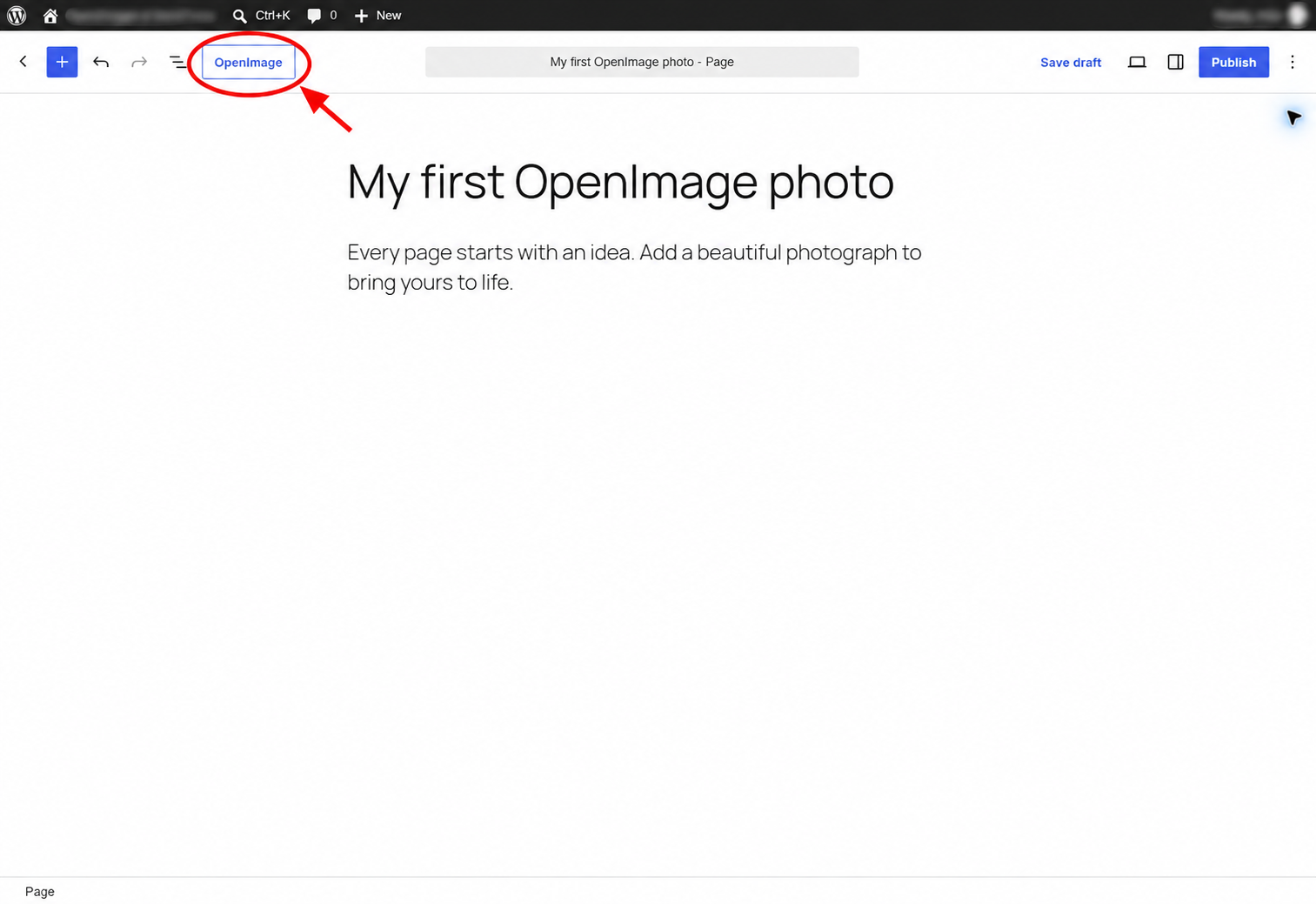
Open a post or page in the WordPress block editor. Click OpenImage in the top toolbar, as highlighted below.
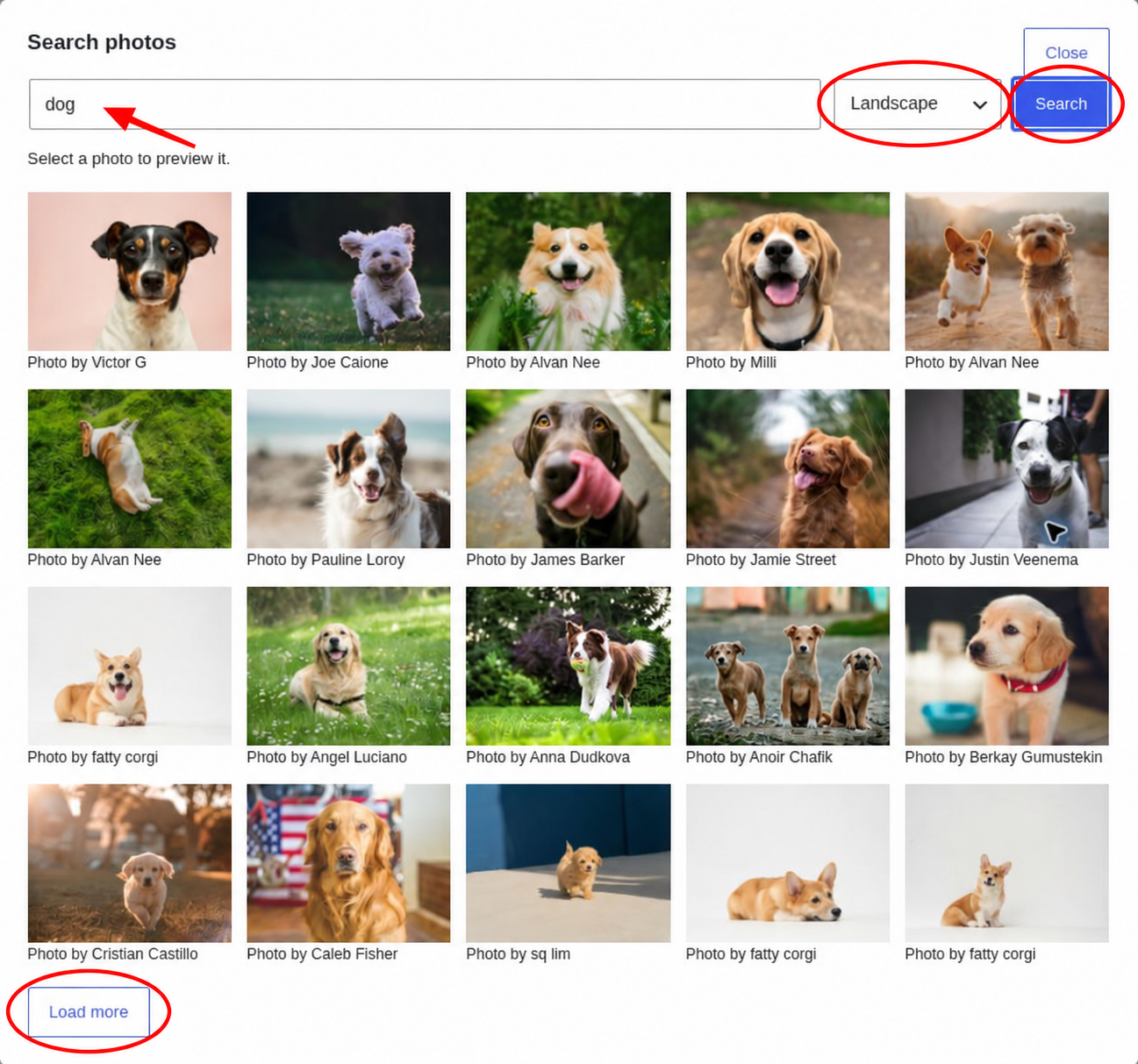
In the search window that opens, enter a subject such as dog, and click Search.
Use the orientation menu to choose Landscape, Portrait, or Square, or leave it on Any orientation. Use Load more to browse additional results.
3. Preview a photo
Click a thumbnail to see a larger preview. Check the full composition and the photographer’s credit before adding the photo.
Choose Back to results to keep browsing, or select Insert into post to add the photo to your content.
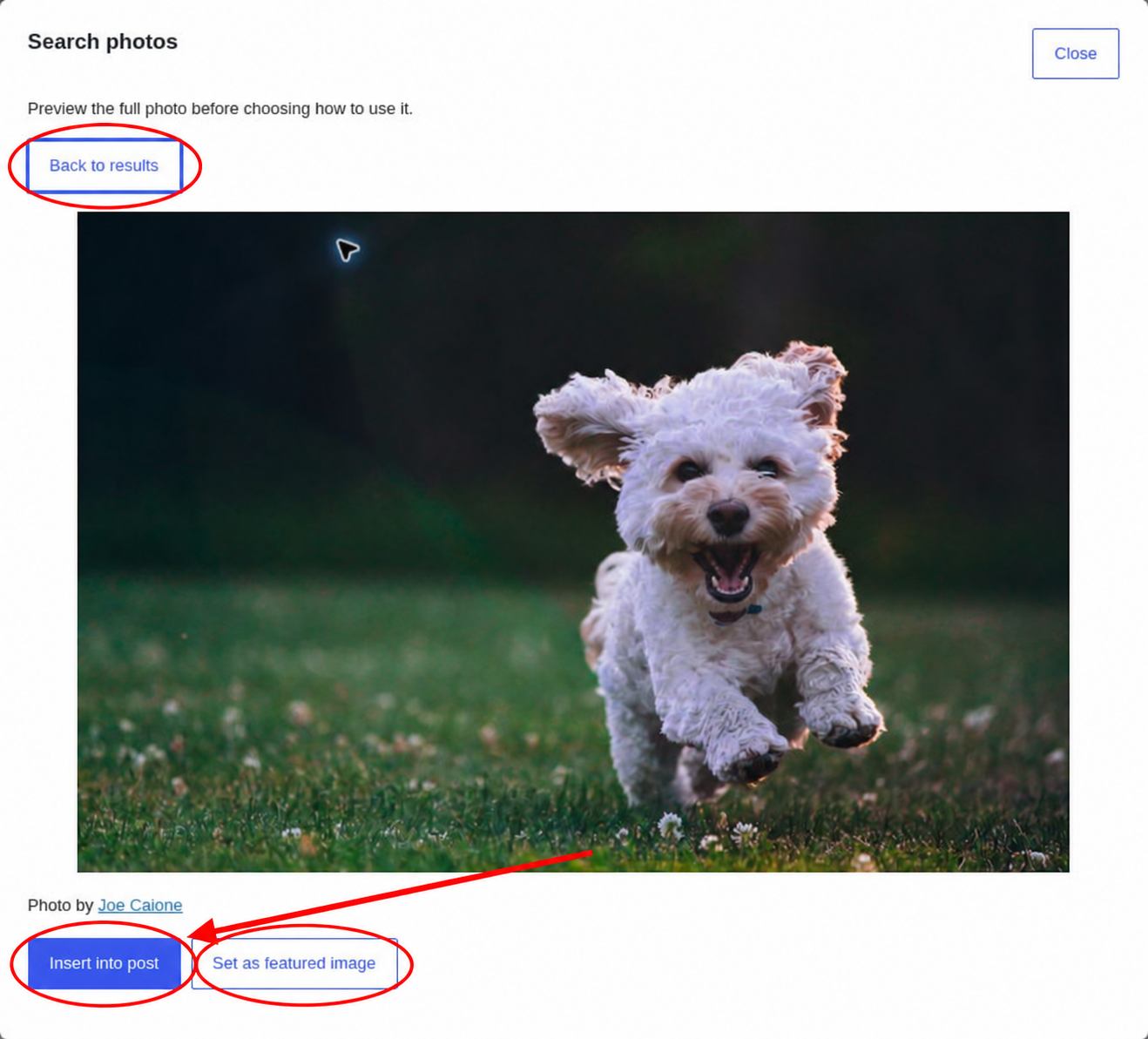
Choose Set as featured image instead. This sets the post or page’s featured image rather than inserting an Image block. The option appears when featured images are supported by your theme and content type.
4. Insert and adjust a photo
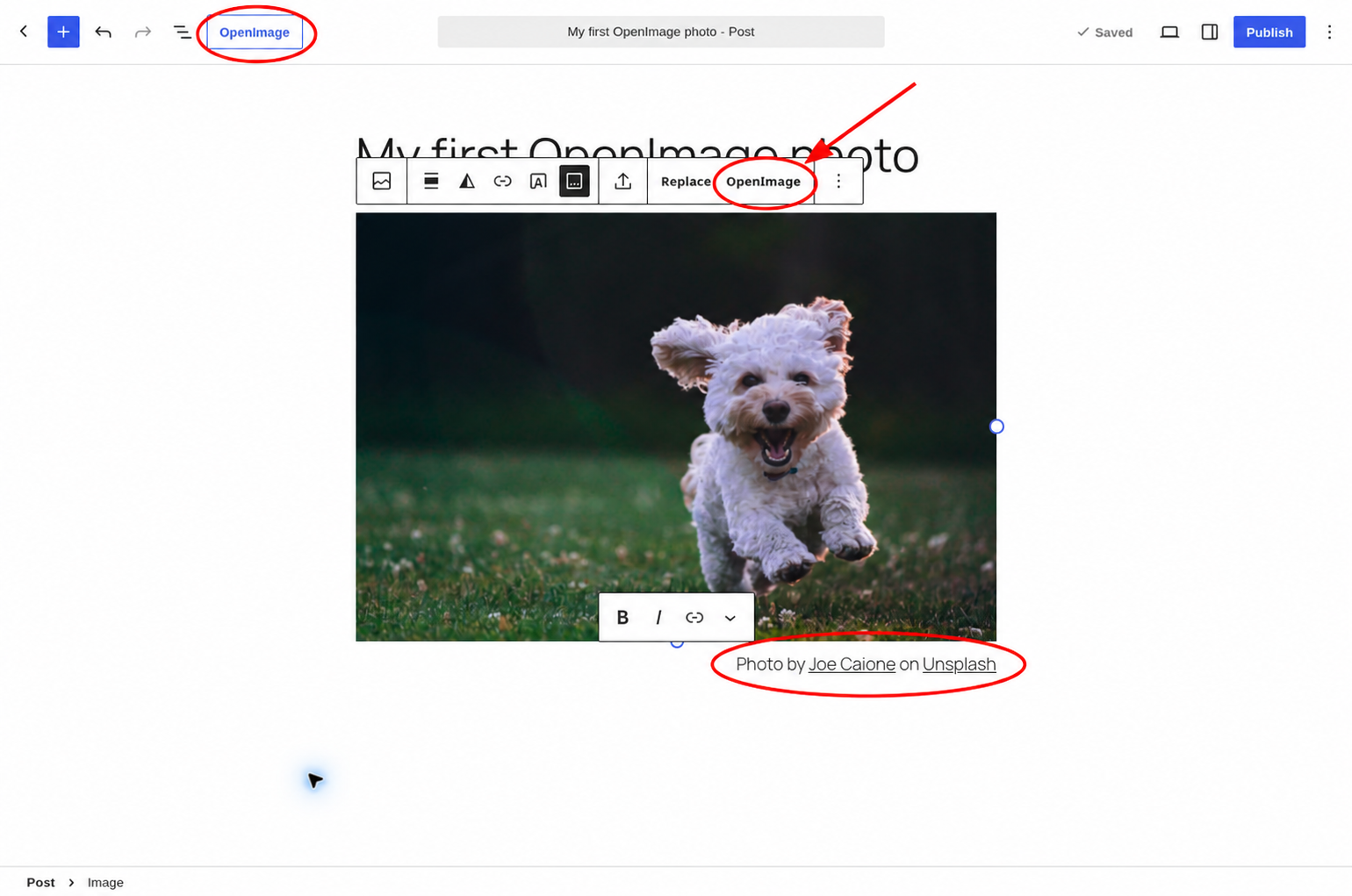
The photo appears as a WordPress Image block with its available alt text and linked photographer and Unsplash credits. OpenImage credits appear below the image, aligned right in smaller text; your theme may affect their appearance.
Use WordPress’s block controls to adjust alignment and the display options available for your image. Save your draft or update your page when you are ready.
5. Review alt text and credits
Select the image and open WordPress’s Block settings. Find the Alternative text field and review the description OpenImage supplied. Edit it to explain what the photo contributes to your page.
For example, “A small white dog running through grass” may be clearer than a description of camera technique. If an image is purely decorative, use WordPress’s decorative-image setting where available.
Keep the linked photographer and Unsplash credits. Featured-image credit placement depends on your theme, so check the public page after publishing.
Replace an image
Click the photo in your content, then choose OpenImage from the Image block’s toolbar. Search for another photo or continue browsing the previous results. Preview your choice and select Replace selected image.
OpenImage updates the photo, alt text, and credits while preserving the block’s layout and styling.
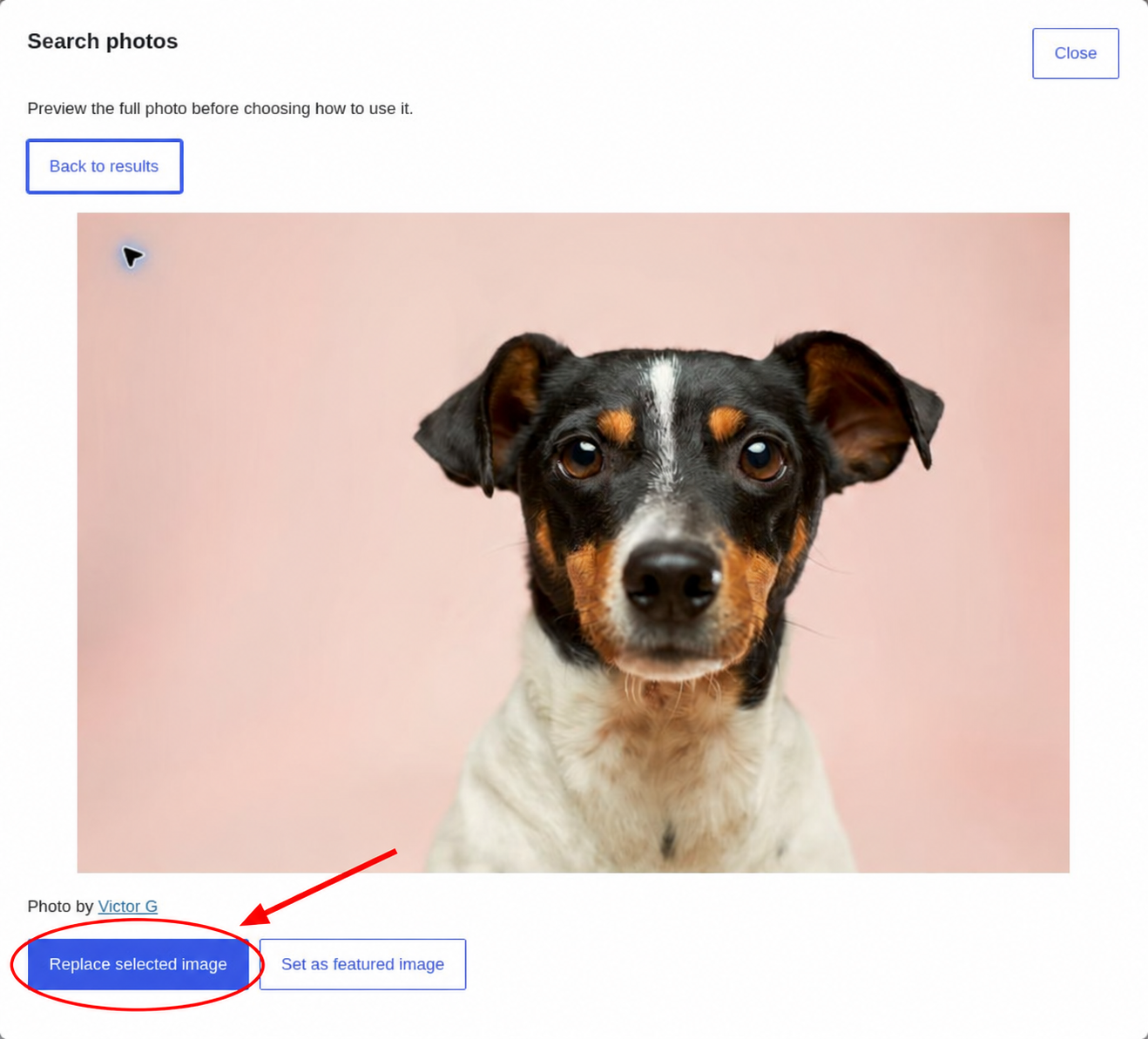
While you remain in the same editor tab, reopening OpenImage restores your search term, orientation, loaded results, and place in the list. Reloading or leaving the editor clears this temporary search memory.
Search from the Media Library
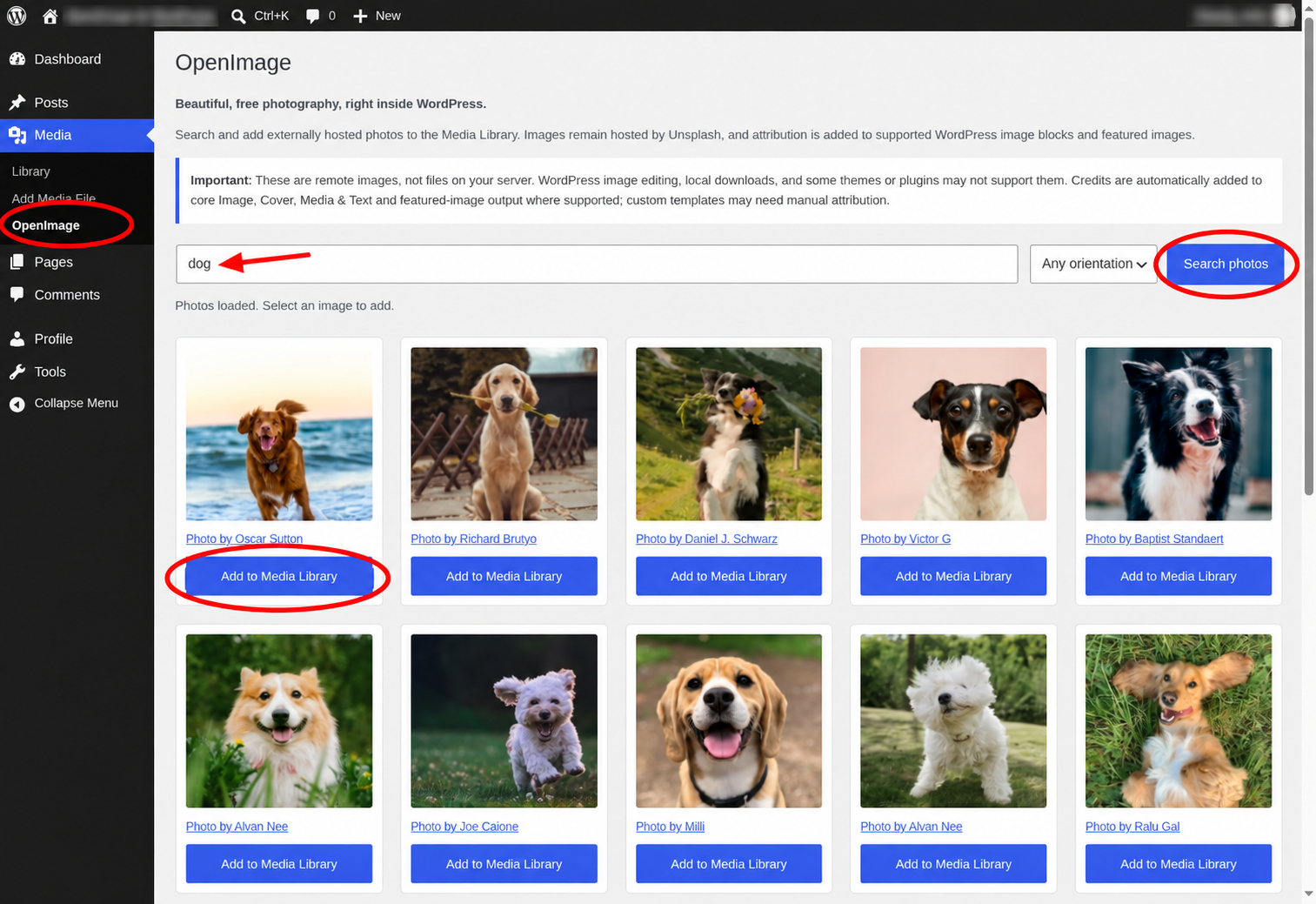
You can also open Media → OpenImage in the WordPress dashboard. Enter a subject, choose an orientation if needed, and click Search photos. Choose Add to Media Library beneath a photo to make it available when selecting an image in WordPress.
Need a hand?
Email support@openimageapp.com with your WordPress and OpenImage versions, a short description, and steps to reproduce the issue.
OpenImage for WordPress · Photography credits are preserved in the screenshots.