
Getting started with Pretty Bookshelf
From your first ISBN to a bookshelf you’re ready to share. Follow this illustrated guide to add books, review their details, and put them on a WordPress page.
Before you begin, install and activate Pretty Bookshelf. These screenshots show a demonstration site; the surrounding editor and available publishing options may vary by theme and plugin edition.
1. Add your first book
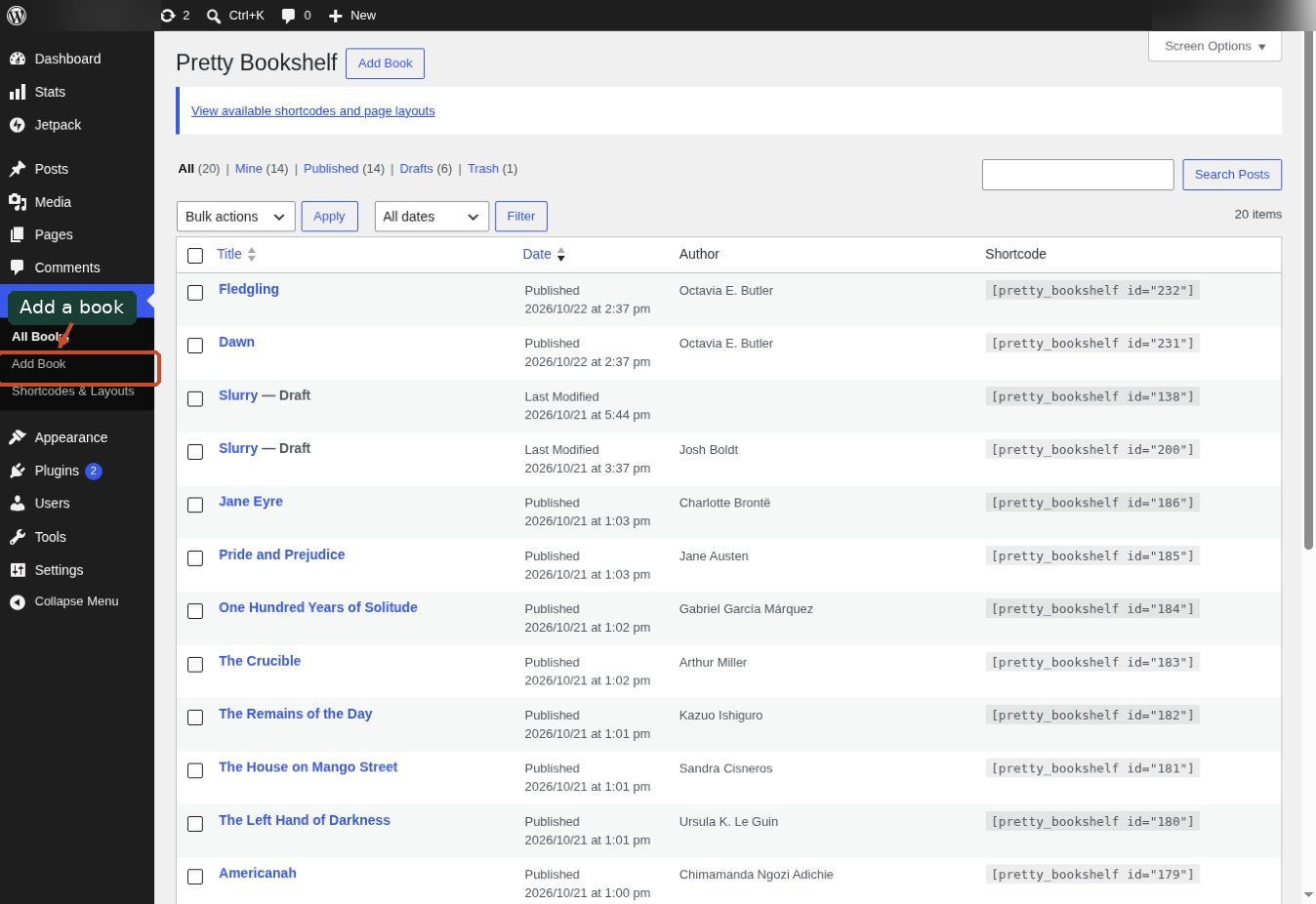
In your WordPress dashboard, open Pretty Bookshelf → Add Book. Each book has its own record, so you can update its cover, description, and purchase links in one place.
2. Find a book by ISBN
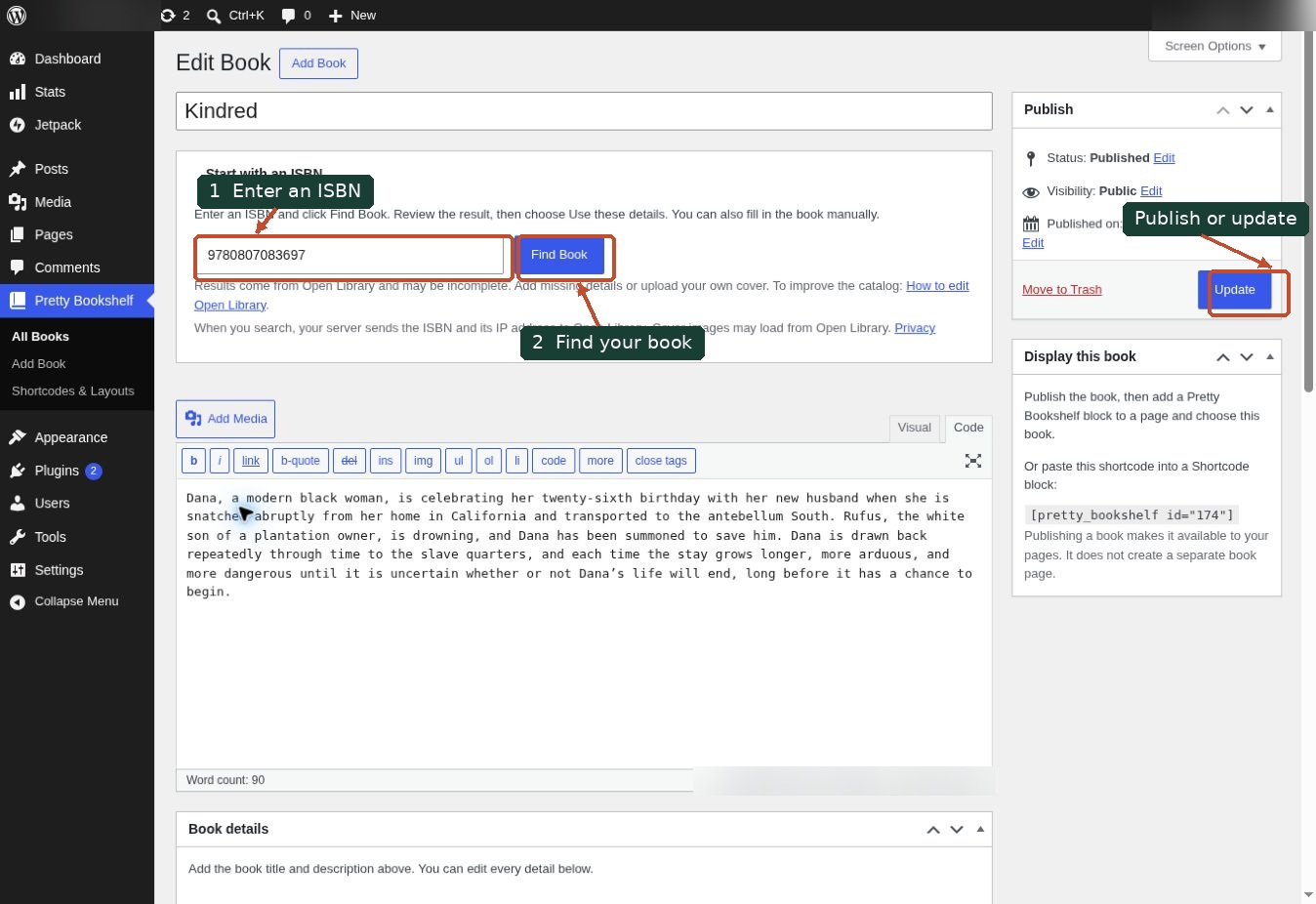
Enter the ISBN for the edition you want, then select Find Book. Pretty Bookshelf searches Open Library for available information. You can also enter everything manually.
3. Review the result before importing
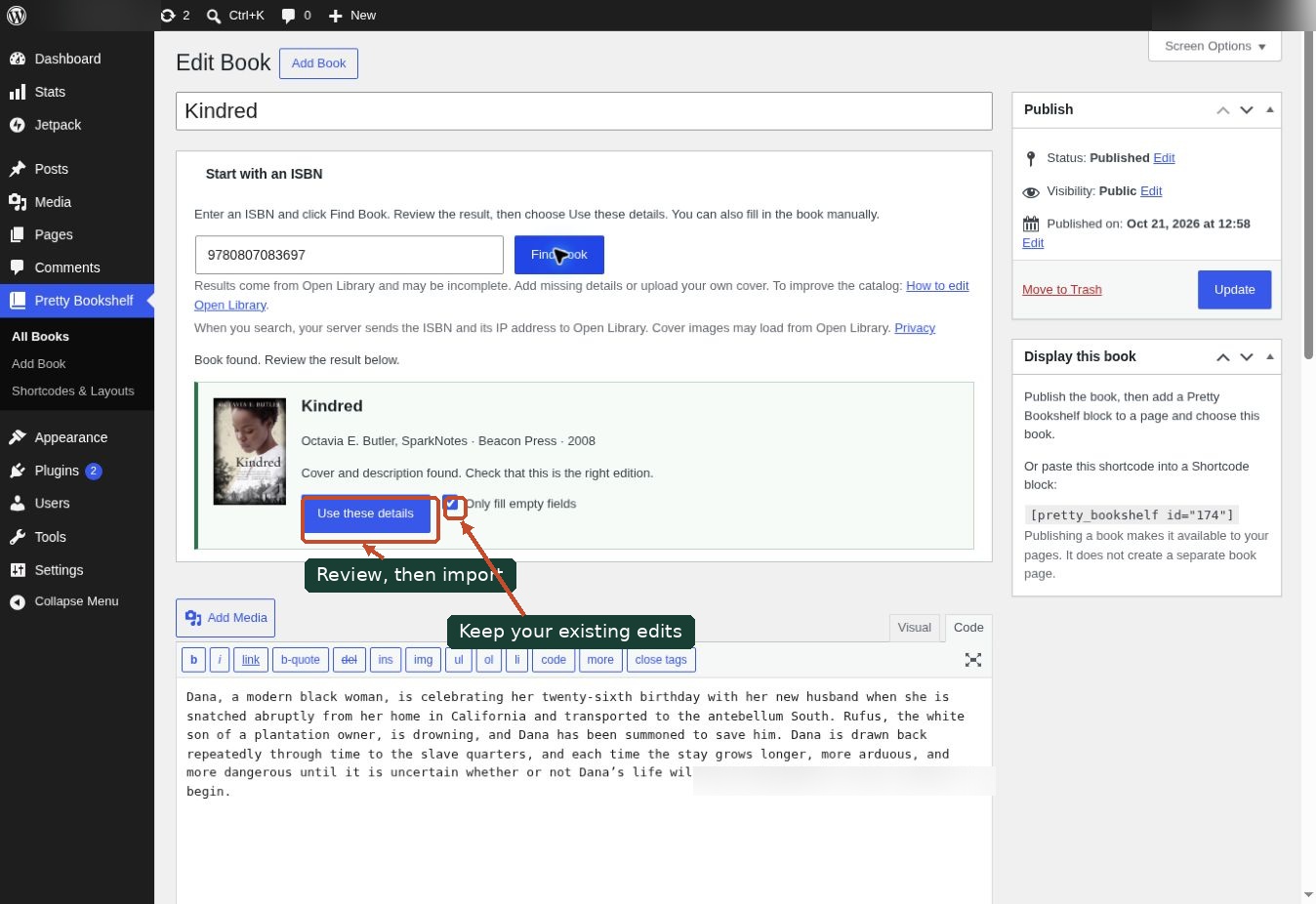
Check the title, author, edition, and cover, then select Use these details. Keep Only fill empty fields checked when you want to preserve information you have already entered. Open Library records may be incomplete or include extra contributors, so review the imported fields.
4. Make the details your own
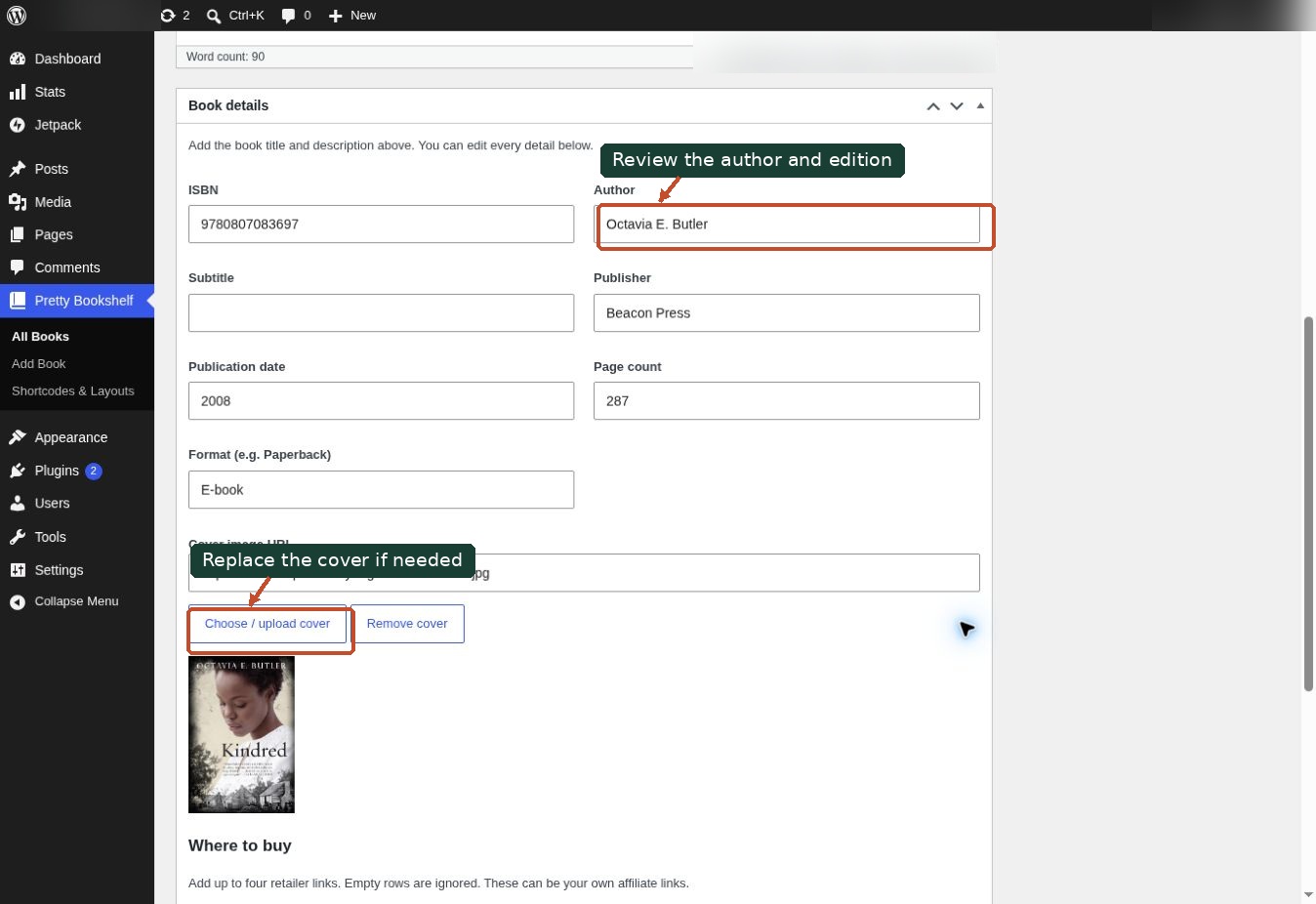
Edit the title and description, then check the author and publication details. If a cover is missing or the edition is wrong, select Choose / upload cover to use an image from your Media Library. Use a cover you have permission to display. To improve a missing or incorrect record, you can also contribute a correction to Open Library.
5. Add store links and publish the book
Under Where to buy, enter a button label and the matching purchase URL. You can add up to four links; empty rows are ignored. Affiliate links are supported—add any disclosure your site requires. Select Publish for a new book, or Update for an existing book.
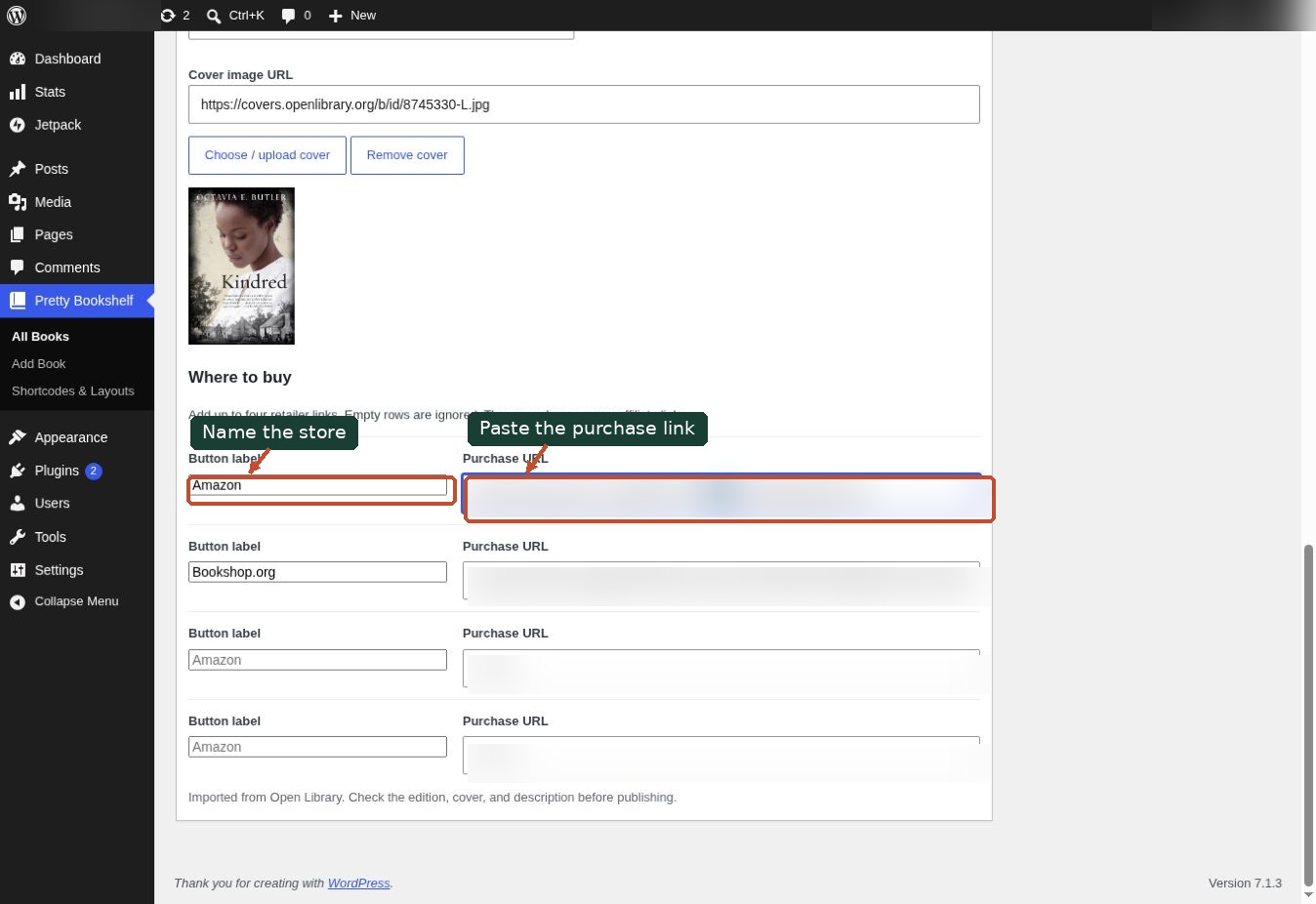
A book record is not a page. Publishing makes the book available for your layouts. You still need to add it to a WordPress page. If your edition limits published books, move an existing book to draft before publishing another, or choose an upgrade.
6. Add the book to a page
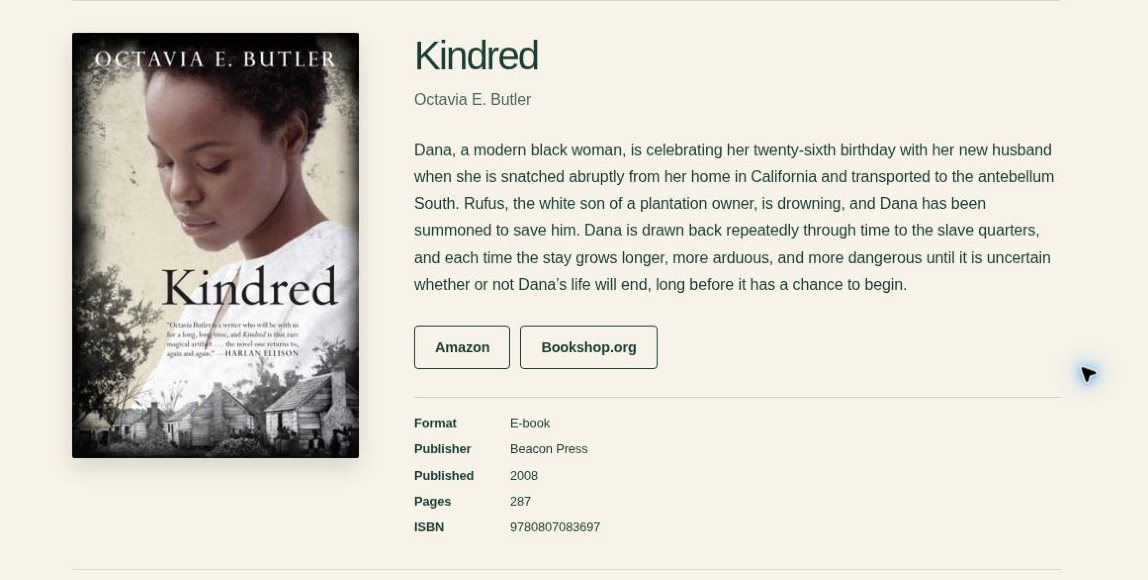
Open Pages → Add Page, or edit an existing page. Use the block inserter to add a Pretty Bookshelf block and choose a published book. If you prefer a shortcode, open Pretty Bookshelf → Shortcodes & Layouts, copy the shortcode for your book, and paste it into a Shortcode block on the page.
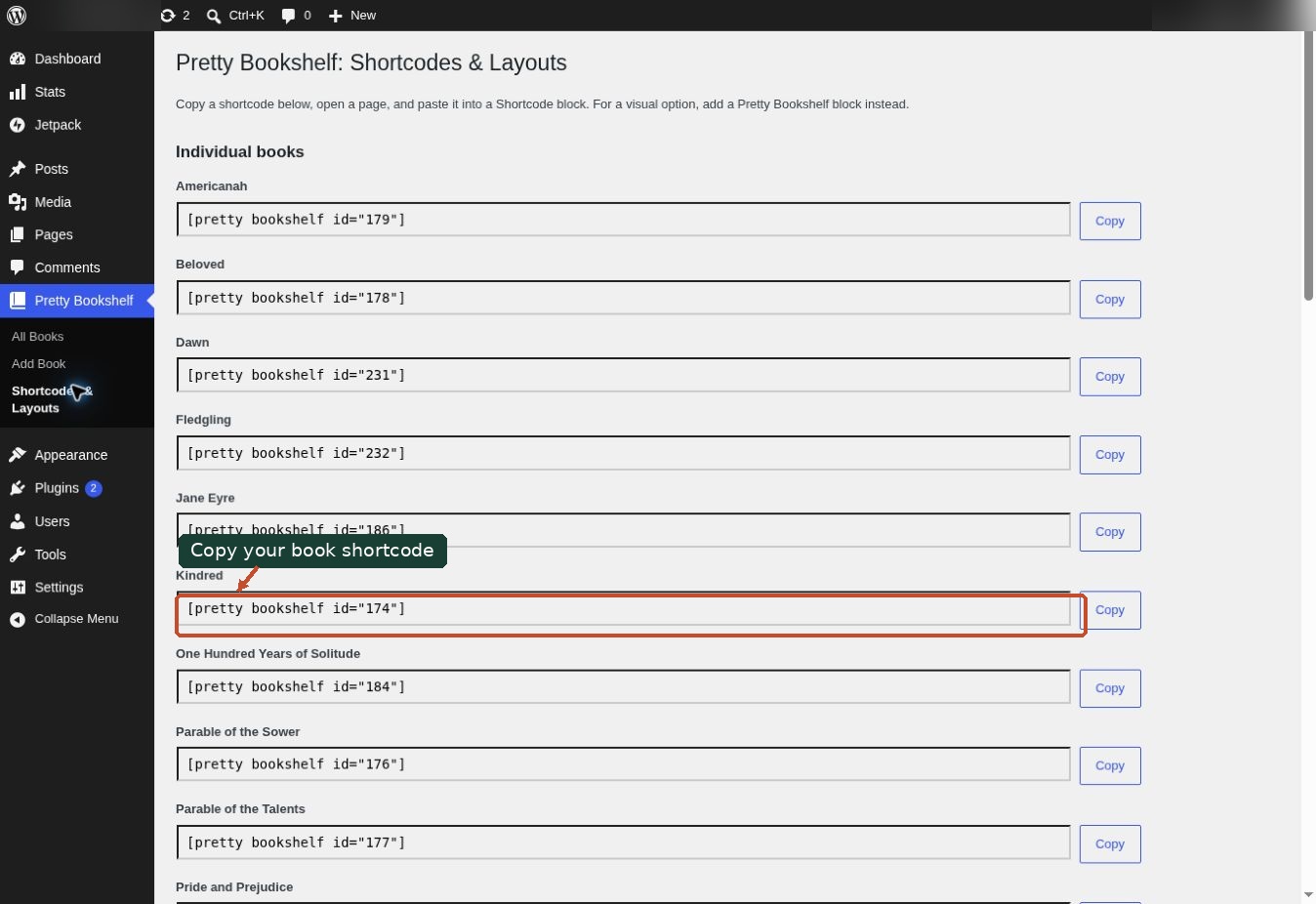
A single-book example looks like [pretty_bookshelf id="174"]. Copy your own book’s shortcode from the dashboard; the number belongs to that book on your site.
7. Start with a ready-made layout
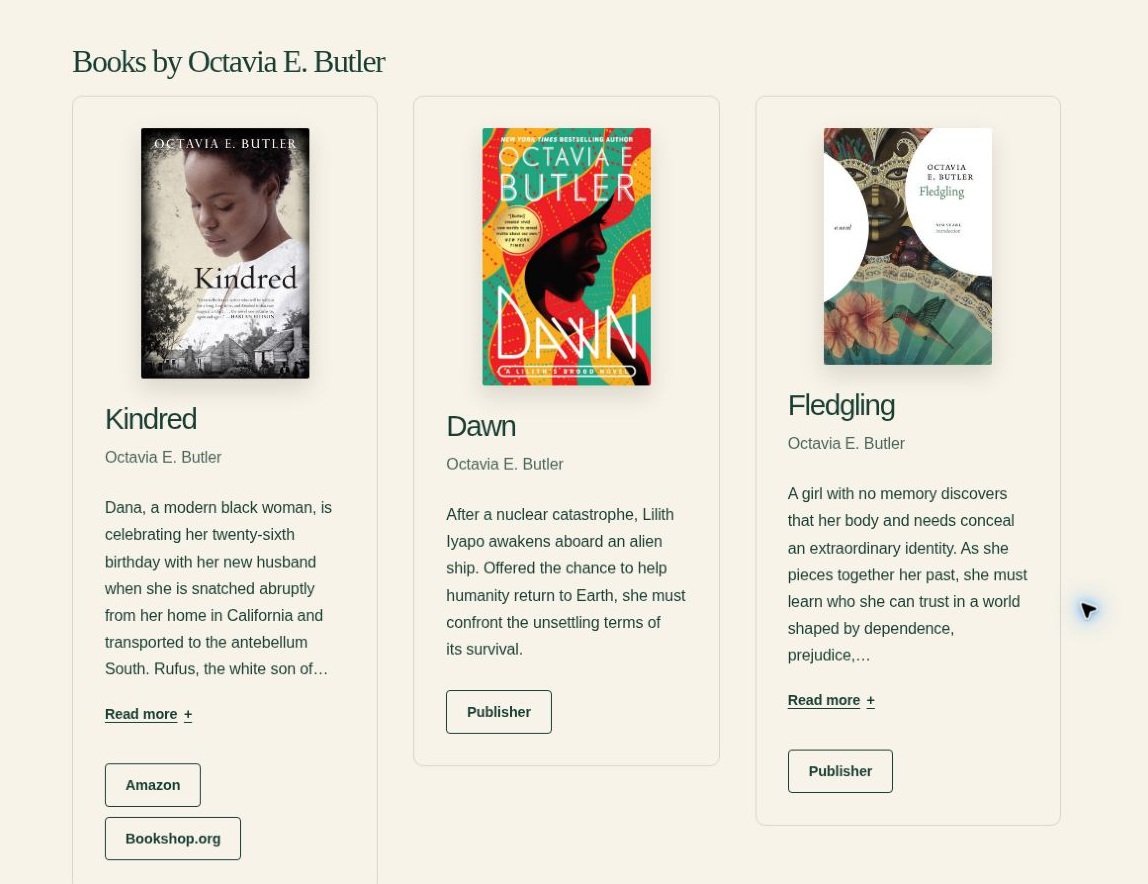
For a fuller page, open the block inserter’s Patterns tab and choose Pretty Bookshelf. Pick Bookstore gallery, Author page, or Single-book launch. Replace the sample text and portrait, then choose your own published books or author. Match the Author field across book records when using an automatic author collection.
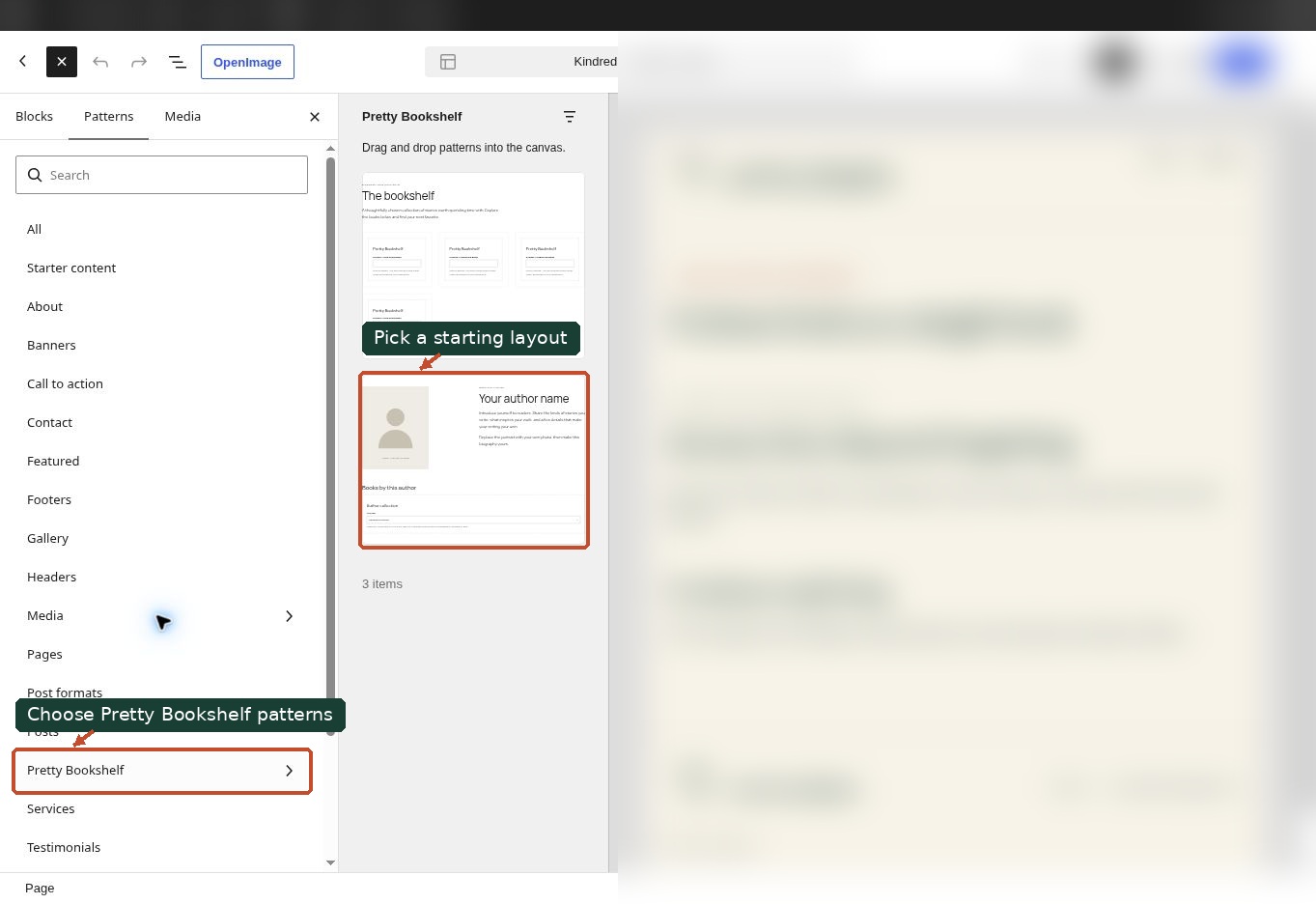
Preview the page, check the covers and purchase links, and publish when you are ready. Patterns give you a starting layout; your WordPress theme supplies the surrounding typography and page design.
See what you can build
Explore the gallery demo · See an author page · View a single-book page
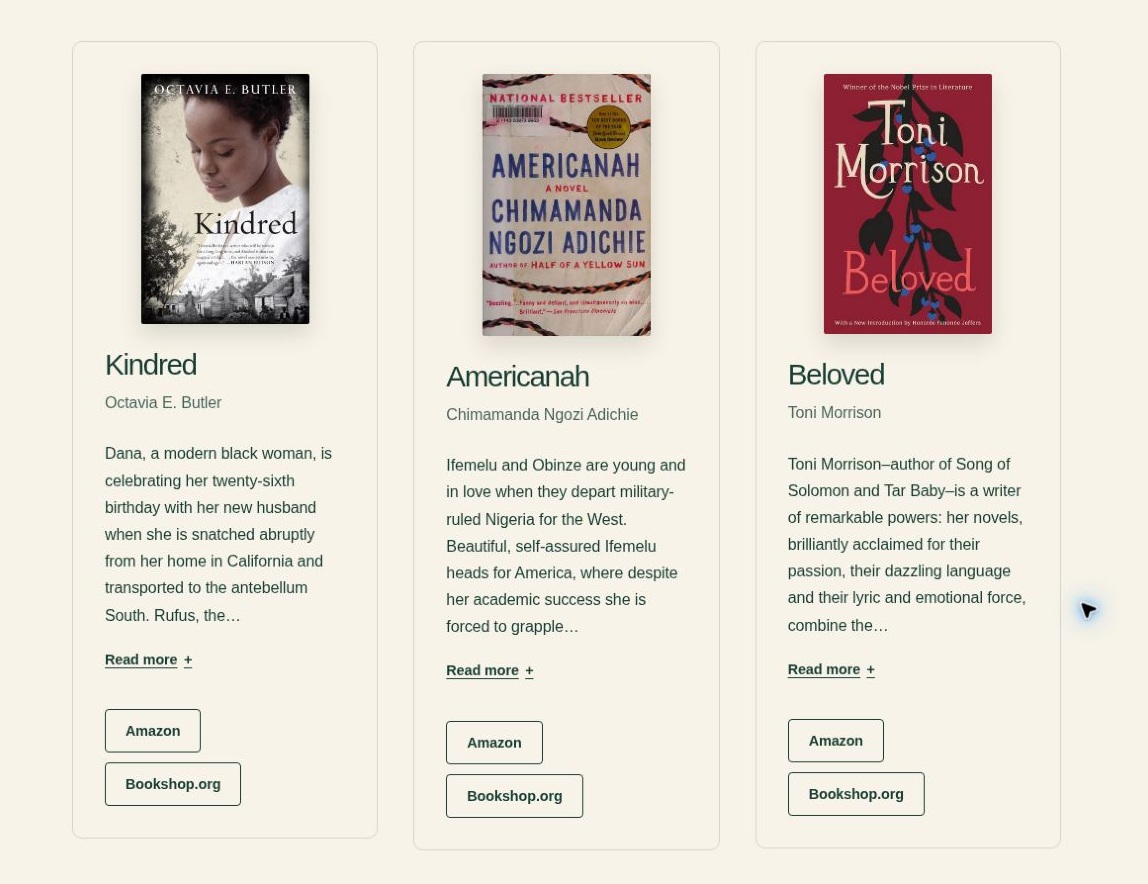
A quick check before sharing
Confirm that each selected book is published, the author names are consistent, the correct edition and cover appear, and every store button opens the right book. Check the page on a phone as well as a desktop.
Need help? Email support@prettyplugins.com.